The second tab in the Position Tracking tool is the Rankings Distribution report. This report compares your overall performance to competitors, with a focus on the top 3, top 10, top 20, and top 100 positions within Google’s organic results.
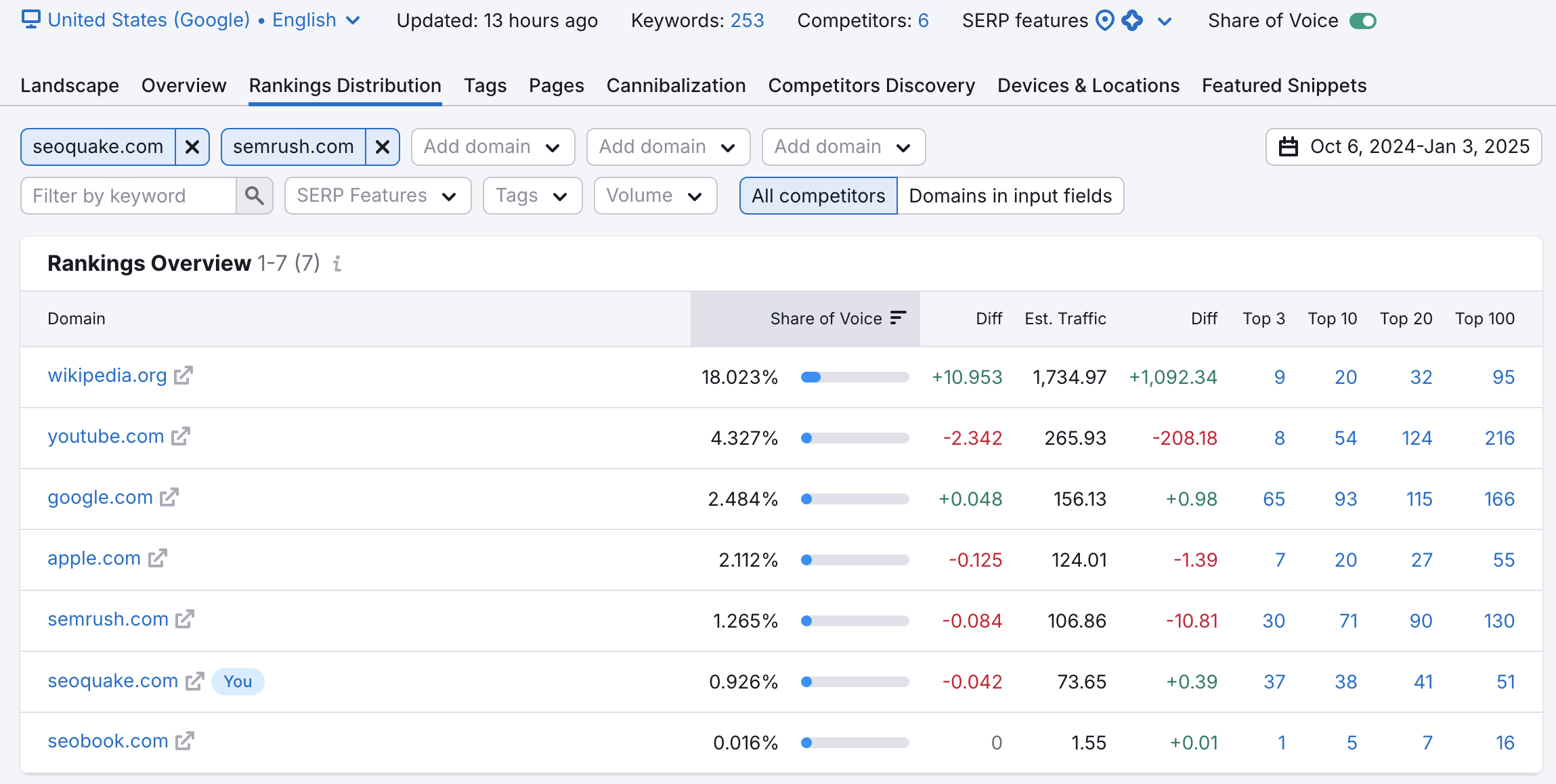
At the top of the report, you can choose your scope of comparison. View “All competitors” to get an overall picture of the competition, or “Competitors in input fields” to hone in on a specific competitor or small group of competitors. With the input fields, you can choose to compare specific URLs, subdomains, or subfolders of websites.
All of this data can be adjusted based on the date range you set at the top right of the interface.
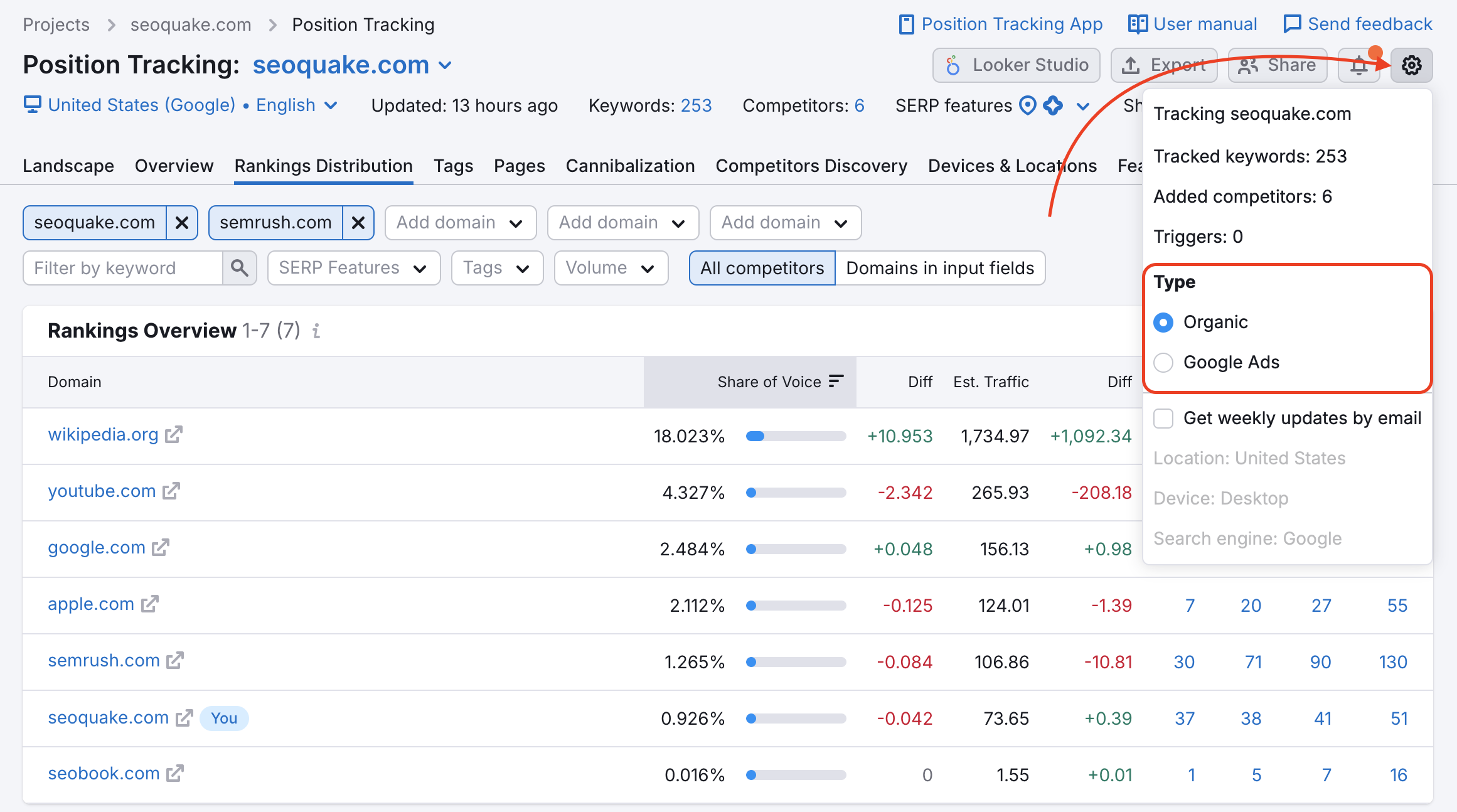
You can also look at the rankings in the top paid results from Google Ads:
Rankings Distribution Table
The first table compares overall Visibility and Estimated traffic between you and your competitors. The competitors will be ranked in descending order to show who is currently getting the most attention.
The table can also be sorted by difference in Visibility or Estimated traffic over the select time period. Sorting by difference allows you to see who is making the biggest jumps or taking the biggest falls in rankings over the course of your campaign.
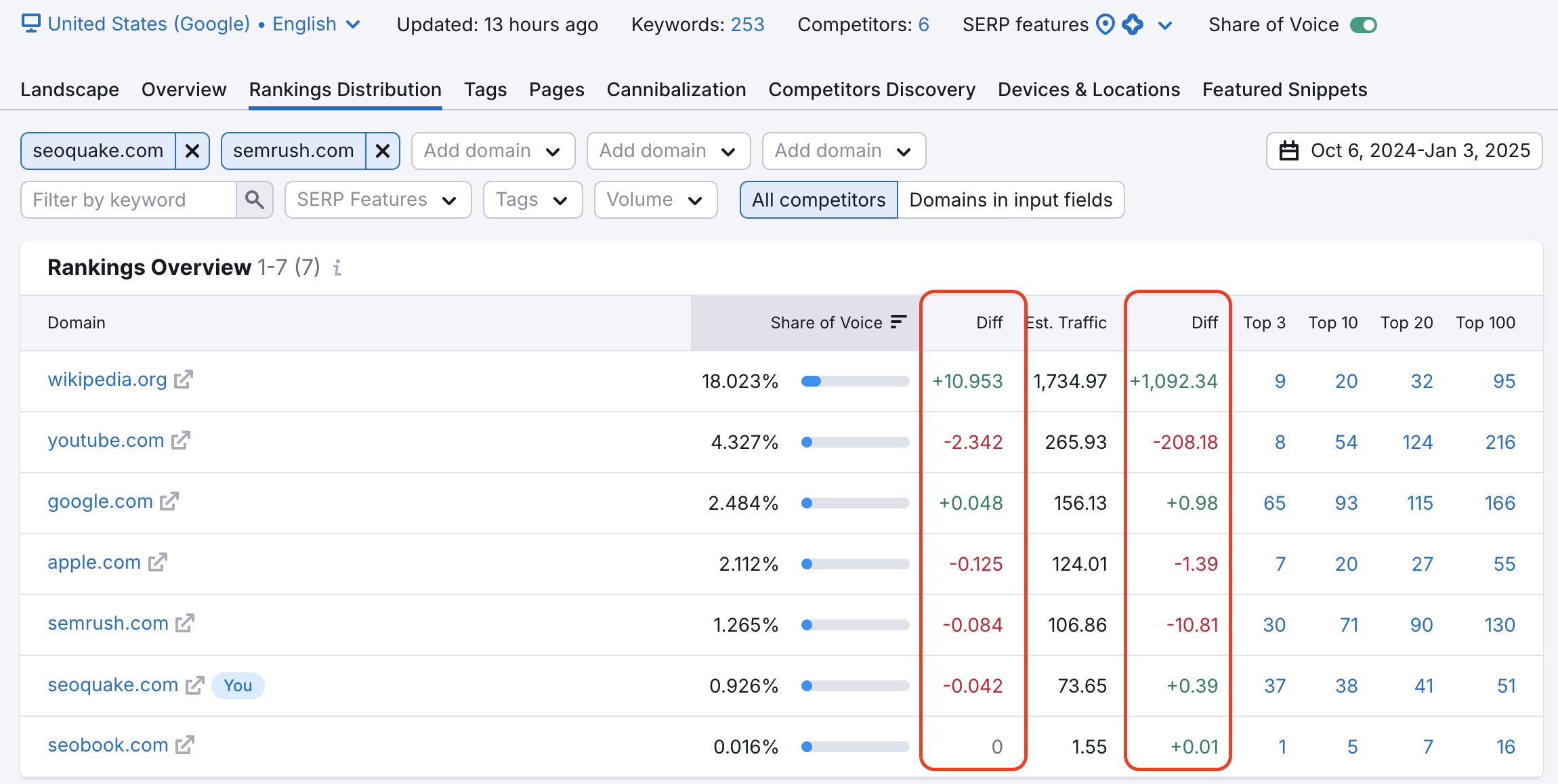
For any of the numbers in the Top 3, Top 10, Top 20, or Top 100 columns, you can click to open an auto-filtered Rankings report with the exact keywords the competitor is ranking for.
Top 3, Top 10, Top 20, and Top 100
The next tables are for the corresponding ranges of positions. First is “Rankings in TOP 3.” This table lists you and your competitors by how many top 3 positions they hold for the keywords in the campaign. The number under the date column can be clicked on to open up a Rankings report with the exact keywords that the site was ranking for in the top 3 positions on the SERP.
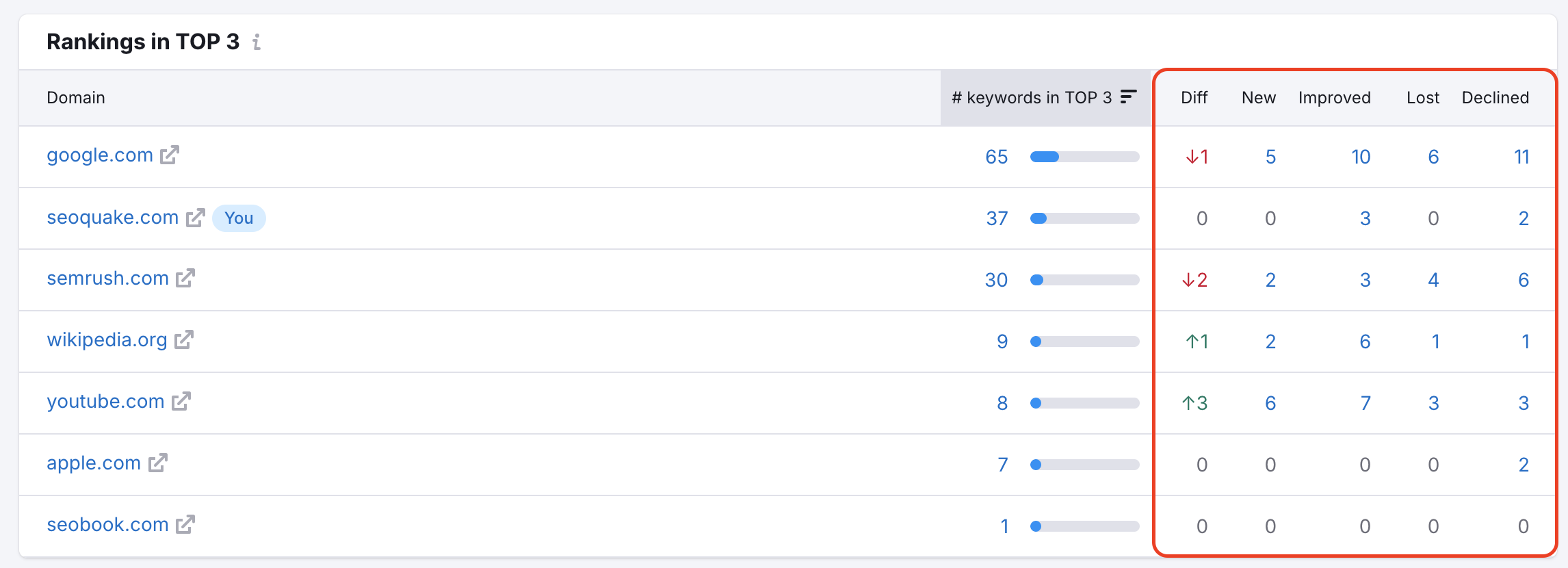
You’ll notice there will be columns here for New, Lost, Improved, or Declined. Click on the numbers in these columns to open a auto-filtered Rankings report to see the exact keywords that had a change in ranking over the selected time frame.
This is a great way to analyze your competitors. Click on their new and improved columns to see where they are performing well, and look at their lost and declined keywords to identify targets you can go after as they lose their good position.
The same actions can apply to the Top 10, 20, and 100 tables. The columns with New, Improved, Lost, and Declined keywords will each have links to check out the specific keywords where a domain saw a change in its rankings.
 돌아가기: Semrush 툴킷 카테고리